
Need help with a technical issue?
Browse our Popular Solutions for self-service guides and answers to common questions or submit a Help Desk ticket for direct support from our team.
Popular Solutions (Help Desk Knowledge Base)
Browse step-by-step guides and answers to common questions.
Submit a Help Desk Ticket
Get personalized help from our support team.
Accounts and Access
Passwords & Security
Forgot your password?
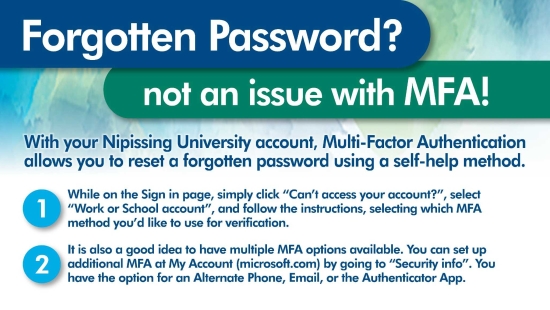
You can reset your password using the self-service password reset tool:
- Password Reset:https://passwordreset.microsoftonline.com/
If you have not previously registered for self-service password reset, or if your recovery options are not set up, you may need to contact the Help Desk for assistance.
- Email:
helpdesk@nipissingu.ca - Phone:
705-474-3450 ext. 4342
How do I register for self-service password reset?
We strongly recommend registering your account recovery methods in advance.
- Register here:https://aka.ms/ssprsetup
You can choose one or more of the following recovery options:
- Microsoft Authenticator app
- Phone (text message or voice call)
- Security questions
- External email address
What is the recommended password reset method?
UTS recommends using the Microsoft Authenticator app.
This method provides a secure and convenient way to verify your identity without needing to remember additional information.
What are the password requirements?
Your password must:
- Be at least 9 characters long
- Include characters from at least three of the following categories:
- Uppercase letters
- Lowercase letters
- Numbers (0–9)
- Special characters (e.g., ~!@#$%^&*)
What is multi-factor authentication (MFA)?
Multi-factor authentication (MFA) adds an extra layer of security to your account.
In addition to your password, you will be asked to verify your identity using a second method, such as:
- A notification through an app
- A code sent to your phone
- A hardware token
Why is MFA required?
MFA significantly improves account security.
Even if your password is compromised, unauthorized access is prevented without your second verification method.
Who needs to use MFA?
MFA is currently required for:
- VPN access
- Microsoft 365 services (Teams, OneDrive, SharePoint Online)
Additional services (such as email, Blackboard, and WebAdvisor) may require MFA.
How do I set up MFA?
You can choose the method that works best for you:
- Microsoft Authenticator app (recommended)
- SMS text message codes
- Hardware token (keychain device)
Setup instructions are available in our Help Desk knowledge base:
How do I request a hardware MFA token?
If you are unable to use a mobile device, you can request a hardware token.
To request a token:
- Submit a Help Desk ticket: https://helpdesk.nipissingu.ca
- Include the subject line: “MFA Token”
UTS will provide instructions for configuration and pickup.
I changed my phone number or lost my device, what should I do?
If you are unable to complete MFA due to a lost or changed device, contact UTS as soon as possible.
- Submit a request: https://helpdesk.nipissingu.ca
- Email: helpdesk@nipissingu.ca
- Phone: 705-474-3450 ext. 4342