Need help?
Submit a Help Desk Ticket for assistance with any IT-related service or issue.
Help Desk email: helpdesk@nipissingu.ca Phone: 705-474-3450 ext. 4342
On-campus computer labs
Computer labs are available for scheduled classes and student use. Main locations include:
A120 and A128
Harris Learning Library
Virtual computer labs
Virtual Computer Labs provide remote access to university software and lab environments from your own device.
How to access Virtual Computer Labs
From my nipissing and select Services tab > Virtual Computer Labs
Sign in using your full Nipissing University email address and password
Select the lab you need; most users will choose General Lab
Direct link: labs.nipissingu.ca
Saving your work
Always save files to OneDrive - Nipissing University. Files saved only to the virtual desktop may be lost when you sign out.
1. Open OneDrive in File Explorer
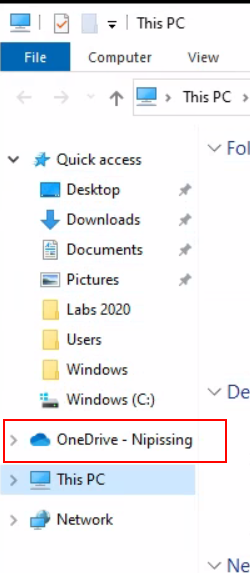
Open Windows File Explorer and select OneDrive - Nipissing University in the left navigation panel.
2. Sign in if prompted
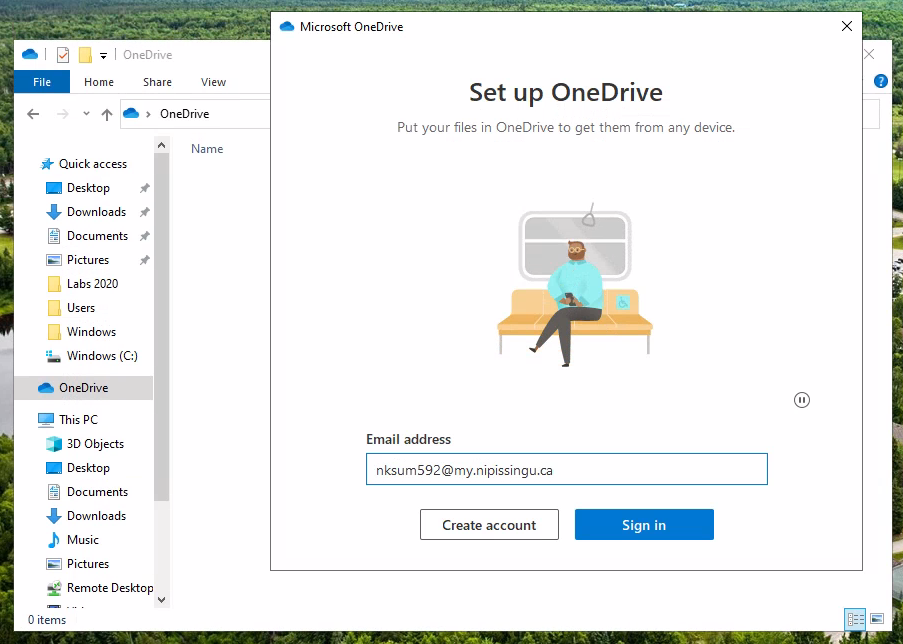
If OneDrive asks you to sign in, use your Nipissing University Microsoft 365 account.
3. Confirm OneDrive is connected
Look for the solid blue OneDrive cloud icon near the clock on the Windows taskbar. When you hover over it, the status should show that OneDrive is up to date.

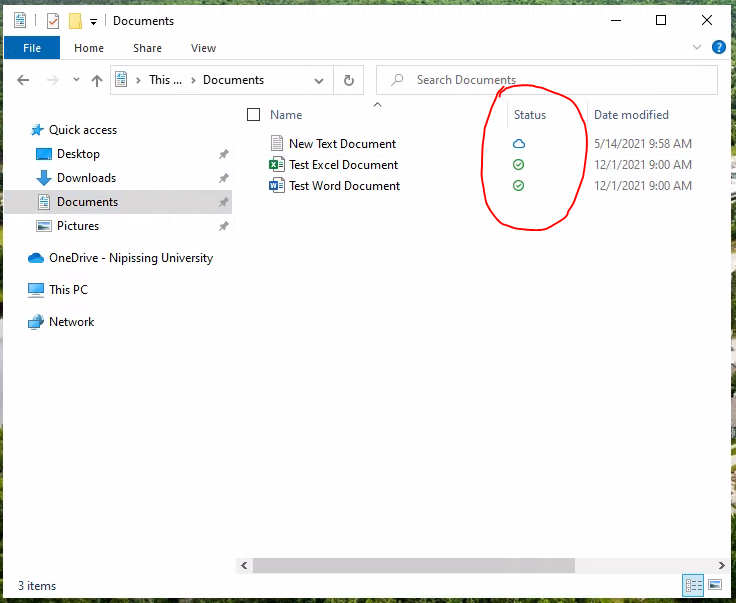
You can also confirm OneDrive is working by checking for status icons beside files in the OneDrive folder.